Extract the complete download
Unzip the release to a normal folder such as Downloads or the Desktop. Keep these items together:
Install_A350_Advanced.batInstall_A350_Advanced.ps1Aerofly FS 4\
Aerofly FS 4 Community Modification
Deeper systems. Real consequences. A more demanding aircraft. A350 Advanced expands Aerofly FS 4 with interconnected aircraft systems, realistic failure effects, enhanced ECAM behaviour and a more authentic operational experience.
The project
A350 Advanced builds on the excellent Aerofly FS 4 A350 with deeper system behaviour, realistic failure consequences and maintenance features, with the long-term goal of delivering a study-level simulation experience.
The project expands system dependencies, ECAM and STATUS consequences, aircraft condition, maintenance and abnormal operations while preserving the strengths and accessibility of the original aircraft.
A350 experience
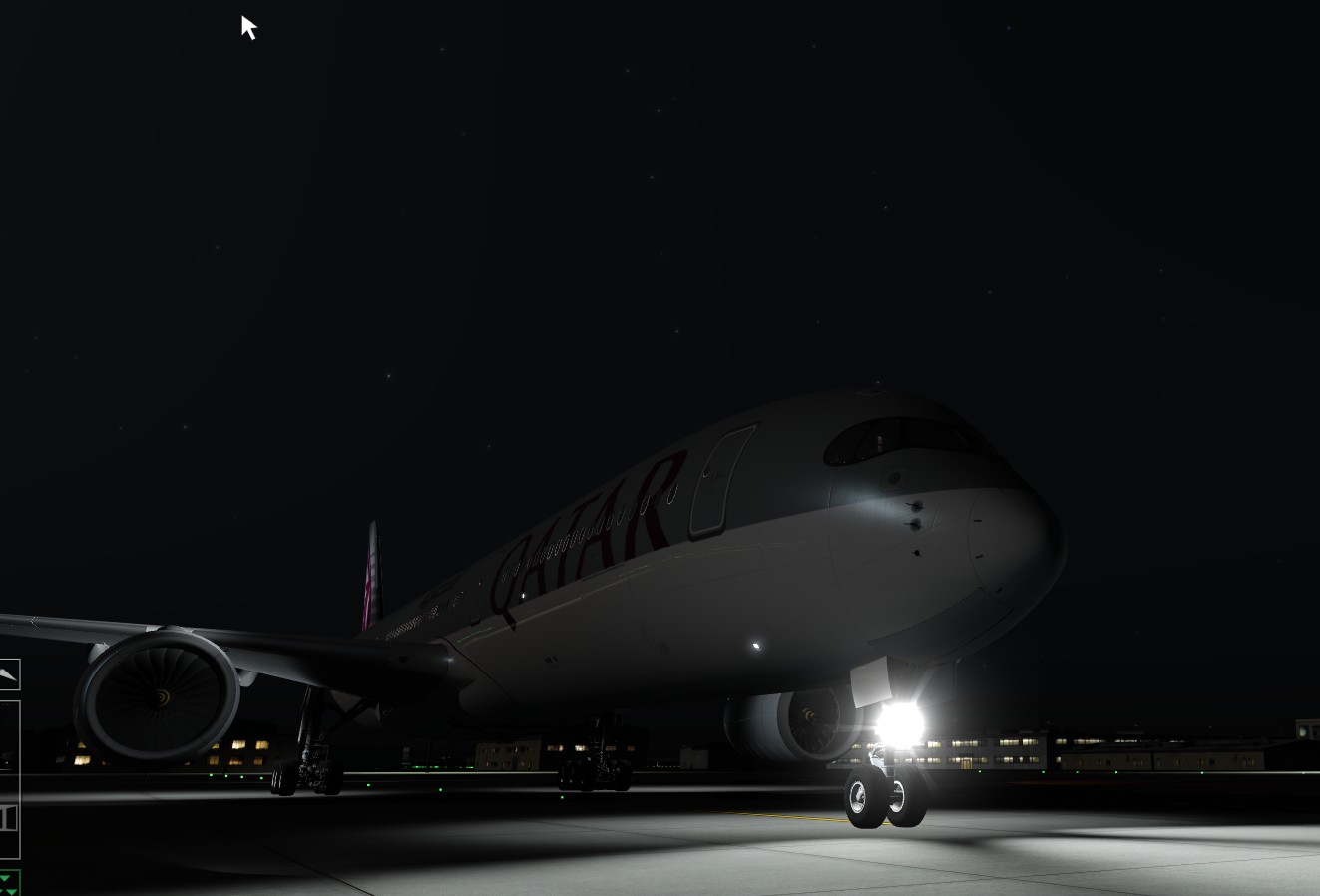
A350 Advanced combines an expanded systems simulation with the atmosphere of long-haul Airbus operations.
Getting started
The included installer creates the Advanced aircraft from a clean copy of the original Aerofly FS 4 A350, applies the complete mod package and verifies the finished installation.
Open Final Installation Guide PDFThe installer does not alter the original aircraft inside your Steam installation.
Unzip the release to a normal folder such as Downloads or the Desktop. Keep these items together:
Install_A350_Advanced.batInstall_A350_Advanced.ps1Aerofly FS 4\
Make sure Aerofly FS 4 and the FLIGHT-TECH A350 Advanced interface are not running.
Double-click Install_A350_Advanced.bat. The batch file starts the supplied PowerShell installer from the folder in which the release was extracted.
The installer locates the clean Steam A350 and your Aerofly documents folder, backs up an existing Advanced installation, creates a fresh a350_1000_adv aircraft and applies the complete Advanced, Dispatch and RAAS/QAR package.
Open the FLIGHT-TECH A350 Advanced interface, choose the required dispatch state, and then start Aerofly FS 4.
The stock A350 inside the Steam aircraft folder is read as the clean source and is never modified.
The stock aircraft is copied to Documents\Aerofly FS 4\addons\aircraft\a350_1000_adv before the Advanced files are applied.
If a350_1000_adv already exists, it is preserved in a timestamped backup before replacement.
The aircraft modifications, Advanced interface, RAAS/QAR files and supplied bridge package are copied into their correct Aerofly locations.
After confirming that the Advanced replacements are present, the installer deletes the copied stock a350_1000.tmc and a350_1000.tmd files from the new Advanced aircraft only.
The installer checks the required folders and replacement files before reporting completion.
a350_1000_adv aircraft and A350 Advanced interface folders.a350_1000 aircraft folder into Documents\Aerofly FS 4\addons\aircraft\.a350_1000_adv.Aerofly FS 4 folder into Documents\Aerofly FS 4, allowing the Advanced files to overwrite the copied aircraft files.a350_1000.tmc and a350_1000.tmd from a350_1000_adv. Never delete them from the Steam aircraft folder.How to use it
Learn how to enter the planned fuel load, start refuelling and understand which tanks feed the engines in different aircraft configurations.
The full Aerofly forum guide explains the fuel entries used for refuelling and FMGS predictions. It also contains two video tutorials.
The mod stores fuel separately in the centre, left-wing and right-wing tanks. It does not treat the displayed fuel-on-board value as one unlimited tank.
Why this matters: flap position, APU demand and tank quantity can change where fuel is being taken from even when the total fuel-on-board figure appears normal.
Under the hood: the mod keeps the entered fuel plan, the physical tank quantities and the calculated aircraft weight aligned as closely as the simulator permits. Changing the fuel load therefore affects more than the number shown on the fuel page.
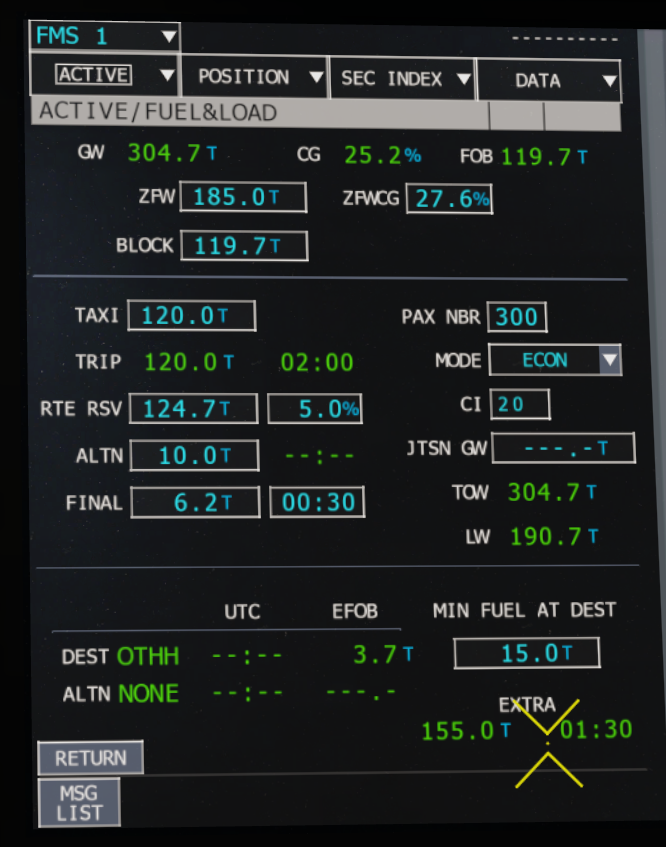
The A350 uses the Multi-Function Control and Display Unit, or MCDU, to enter and review the fuel and load data used by the flight-management system.
Fuel temperature changes gradually rather than instantly following outside-air temperature. During a long high-altitude sector, the centre and wing-tank fuel progressively cold-soaks toward the surrounding conditions.
Operational lesson: the displayed fuel temperature reflects the aircraft’s recent flight history. A recently landed long-haul aircraft may still carry very cold fuel.
Understand which hydraulic source is stopping the aircraft and what changes after system or anti-skid failures.
Normal braking is supplied by the Green hydraulic system. With Green pressure and anti-skid available, the aircraft retains normal pedal braking and autobrake operation.
If normal braking is lost, the aircraft changes to Yellow-system alternate braking. Braking remains available, but capability and protections may be reduced depending on the failure.
The Yellow-system brake accumulator stores hydraulic pressure for the parking brake and limited emergency braking when the main hydraulic sources are unavailable. Each brake application consumes stored pressure.
Anti-skid loss further reduces usable braking and increases the risk of wheel lock. Autobrake depends on the normal braking path and is not treated as a separate hydraulic source.
Read the aircraft: use ECAM/STATUS messages and wheel/brake indications to determine whether normal, alternate or accumulator-only braking remains before landing.
Learn how braking faults, touchdown position and runway remaining are combined into operational warnings.
Landing distance is not based on runway length alone. The mod also considers the aircraft’s braking state, anti-skid availability, hydraulic supply and where the aircraft actually touches down.
The runway-overrun logic can issue RWY TOO SHORT when the calculated stopping requirement exceeds the usable runway, and MAX BRAKING MAX REVERSE when maximum deceleration is required.
The integrated RAAS/QAR system compares touchdown position with the runway threshold and can record or announce a long landing when touchdown occurs beyond the configured acceptable zone.
Runway remaining is calculated from the matched runway geometry and the aircraft’s live position. The recorder panel displays the remaining distance in metres. Optional voice callouts can present runway distance in feet where configured.
Operational lesson: a runway that is adequate with all systems available may become unsuitable after normal-brake, anti-skid, hydraulic or tyre faults. Reassess the landing rather than relying on the original flight-plan performance.
Learn how the Advanced Panel creates the aircraft condition that Aerofly loads.
The panel copies the appropriate aircraft-state files and overlays into the active Advanced aircraft. The selected condition therefore affects the simulation after loading rather than acting as a separate display-only menu.
Understand the difference between an ECAM message, a persistent aircraft fault and maintenance restoration.
Reference library
Use an authorised Airbus or operator source for the applicable FCOM.
Final installation, automatic installer, folder layout, first launch, updates and troubleshooting.
Compatibility changes and known limitations will be published with the updated release.
Release status
The public download is temporarily unavailable while A350 Advanced is updated and verified against the latest Aerofly FS 4 Beta. The download and release notes will appear here when the compatibility build is ready.